Welcome to AlomWare Toolbox!
| Figure 1 | |
 |
Preparing for first use
You should always try and run AlomWare Toolbox with administrator rights if possible, as this solves 99% of usability problems because due to allowing the app to interact with and work on all windows and apps on your PC, and gives access to all files that you may want to work with. If you run AlomWare Toolbox with standard rights, then it won't be able to interact with and work on any other windows that have administrator rights, leading you to wonder why nothing's happening with those windows. It also means the app won't be able to access some areas of your C: drive, such as the file-watching feature in the Files tab. These are not bugs with AlomWare Toolbox but rather rights issues imposed by the Operating System.
When AlomWare Toolbox first runs, you'll see an End-User License Agreement (EULA) that details its terms of use (Figure 2). You must read and agree to the terms of the EULA to use the app; otherwise you may decline and delete the app from your PC.
| Figure 2 |
 |
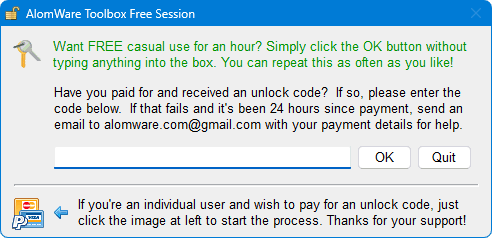
If you agree, you'll then be asked to enter an unlock code if you paid for one, or just click the button to get free casual use for an hour per every launch (Figure 3).
| Figure 3 |
 |
The default and main hotkey for the app is Ctrl+` , which means to hold down the Ctrl key and press the ` key (grave) at the same time (Figure 4). This hotkey is used to show AlomWare Toolbox's main window, so you can edit your automated actions and access the other productivity features of the app.
 Figure 4 Figure 4 |
 |
If this default hotkey is already in use by another app on your PC, or is reserved by the OS (such as Win+R), then you'll get a prompt asking you to specify a different hotkey (Figure 5). Choose a hotkey of your liking, and click the button.
 You cannot use the app without setting the main hotkey!
| Figure 5 |
 |
 If you ever forget the main hotkey, you can see it by hovering your mouse over the app's icon in the System Tray (Figure 6).
| Figure 6 |
 |
Main hotkey set? Then you're ready to go!
You may now browse the chapters in the list at left to learn more about AlomWare Toolbox, but please make sure you read about the app's Privacy settings.